C Tech Premier Floating License Software is provided to the C Tech contact for your company, and is automatically installed using the install program setup.exe (which will autorun if your system is set up to do so). The Premier Floating License Client software is compatible only with Windows 7 or newer Operating Systems.
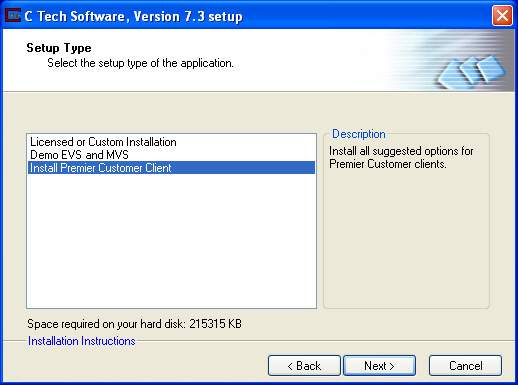
Run the EVS/MVS setup program and select the option for "Install Premier Customer Client" in the Setup Type screen.
Respond to the prompts of the installation program.
Following installation run the KeyTools.exe program in the tools subfolder of the C Tech program group ON THE SERVER MACHINE (the one with the hardware key).
Click on the "Floating License Commands" tab.
If you plan to occasionally run the client software in a standalone mode (by also running the standalone floating license server) so that computer (such as a laptop) can act as a server when separated from the network, check the "Also Specify Client" toggle as shown below.
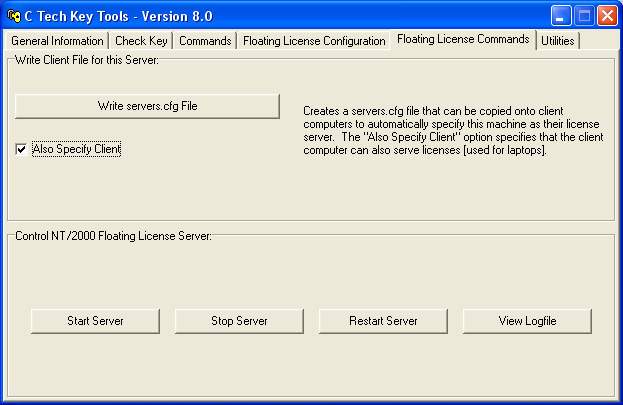
Click on the "Write servers.cfg File" button.
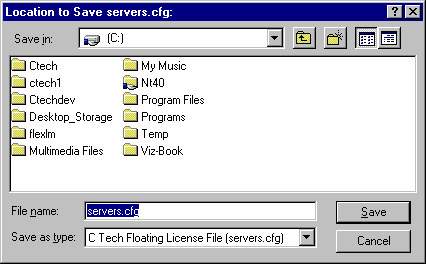
At this point, specify the location of the file servers.cfg. This file is used on all client machines (including the server if it will also be running the software) to specify the location of the server on your network.
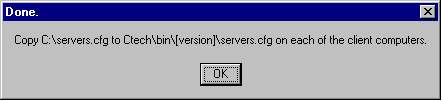
The following message will appear to remind you to copy this file to the appropriate folder on each client machine. For MVS Premier, the location would be ctech\servers.cfg or ctech\bin\premier\servers.cfg.
© 1994-2018 ctech.com