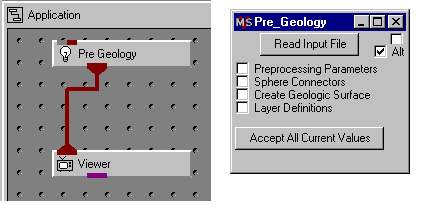
Step 1: Instance Pre_Geology and Viewer and then connect them. You should immediately see the Viewer and Pre_Geology control panel on your screen.
Step 2: Using the Read Input File button, open the interface and select on the pgf file named initial_soil_investigation_subsite.pgf. Then go back to the panel and toggle on Create Geologic Surface. Once you see the interface for this function you should move this to an "out-of-the-way' place on your screen, but still visible (a good place is over the network editor palette area). You are now ready to create a geologic surface via mouse interactive clicking in the view screen. Don't start clicking yet!
Note: You will not be able to perform this operation unless the Create Geologic Surface interface is open.
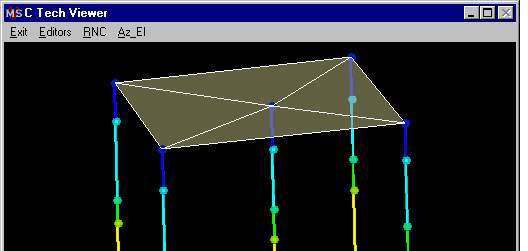
Step 3: Now that the Create Geologic Surface is open you will use the Alt-Left mouse action to select lithologic intersections. Since this surface will be a series of triangles you must select three unique points (spheres), before seeing the first triangle of the surface. Remember, you must click only one sphere per boring, and you should start at the top and work your way down to preserve the lithologic hierarchy. Once you have completed clicking all the points you should see something like the picture below. Now let's move to the next step where we will write this first surface to a gmf file.
Step 4: Make the Create Geology Surface window active and also click on Layer Settings and select the top selection. Now the two open panels should look similar (but probably not identical) to the picture below:
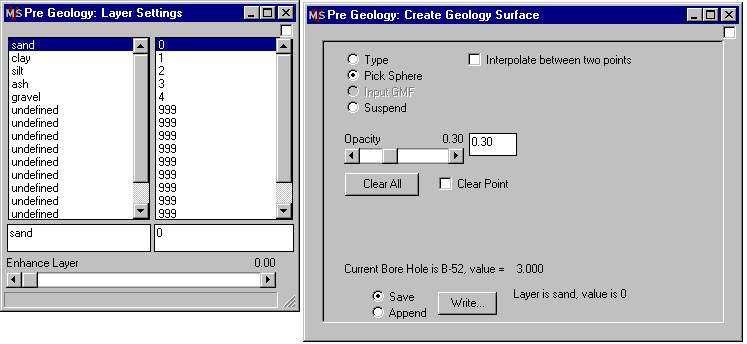
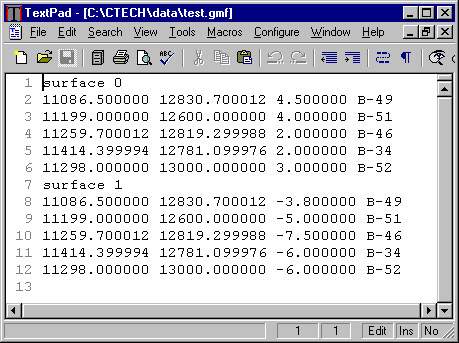
Now click the "Write" button and a file browser will appear prompting for a file name with a .gmf extension. Fill this out as test.gmf for this example and click OK. At this point the top surface of a gmf file has been created by EVS and written to a file named test.gmf. If you edit this file you should see the following text in your editor:
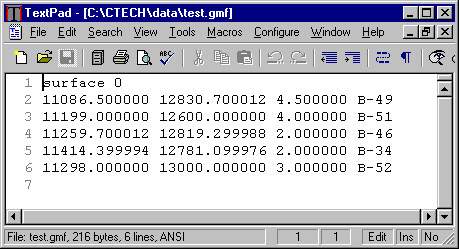
In order to create the second surface of your file, you must click Append on the Create Geology Surface panel, then click the 2nd selection in the Layer Settings panel. Repeat step 3 and step 4 at the intersection points between layer 1 and 2 to create the bottom of layer 1. Now edit your gmf file, and your text should look like this:
Step 5: Optional You may use the application shown below to display the 3D model resulting from your newly created gmf file (test.gmf). The non-default settings for this application are listed below just after the graphic of the module connections:
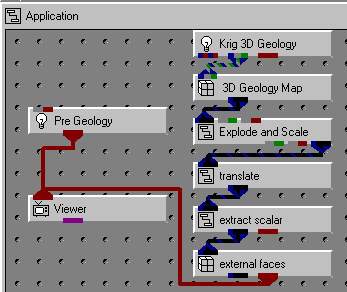
In order to achieve the view below, the following module settings must be set:
Krig_3D_Geology - Read and Accept test.gmf
Explode_and_Scale - set explode factor to "0"
Extract_Scalar - select Geo_Layer
Translate - set X Offset to 350
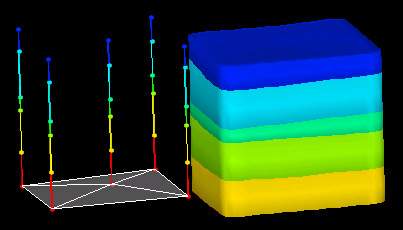
Note that this approach could have been applied from the outset of the process. Try this out by starting over making a file called test2.gmf, but this time read and accept test2.gmf in Krig_3D_Geology after creating each surface. This approach is very useful when testing your interpretations.
Also note that the main Pre_Geology help describes the features available for picking surface elevations which are not directly at the sphere locations.
© 1994-2018 ctech.com