General Module Function
The make_geo_hierarchy module reads a special input file format called a pgf file, and then allows the user to build geologic surfaces based on the input file's geologic surface intersections. This process is carried out visually (in the EVS Viewer) with the use of the make_geo_hierarchy user interface. The surface hierarchy can either be generated automatically for simple geology models or for every layer for complex models. When the user is finished creating surfaces the gmf file can be finalized and converted into a *.GEO file.
Module Input Ports
This module is a stand-alone module and has no input ports.
Module Output Ports
make_geo_hierarchy has two output port.
1) geologyInfoOut (Brown, Grey, Light Brown, Dark Yellow) : This port outputs geologic material values or geologic layer names to the Legend module.
2) out_obj (Red): This port outputs a renderable geometry to the viewer.
Module Control Panel
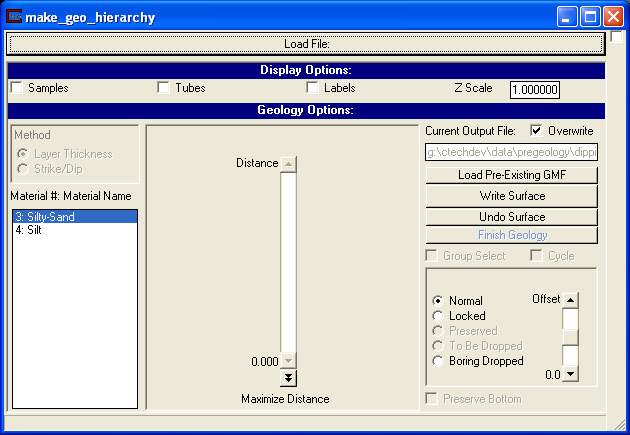
The main panel for make_geo_hierarchy is shown above. The Load File button activates a browser for selecting any file with a .pgf extension.
Display Options:
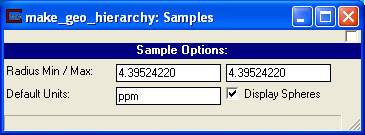
The Sample toggle will bring up the window above when selected.
The Radius Min/ Max fields control the radius of the spheres.
The Display Spheres toggle when selected will render a sphere at each sample location.
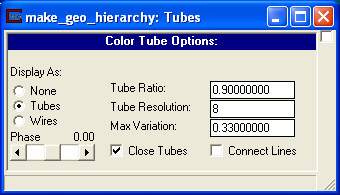
The Tubes toggle will bring up the above window. This window has the same options as the Color Tube Options window in post_samples and the help for it can be found there.

The Labels toggle will bring up the above window. This window has the same options as the Label Options window in post_samples and the help for it can be found there.
The Z Scale field affects the veritical exaggeration of the rendered model.
Geology Options:
The first step to creating a geologic hierarchy is to load a *.pgf file. The next step is to either load a pre-existing GMF or to select the material of the top surface and then write the top surface. The Material #: Material Name list box is used to select the material for the current suface. Only materials that are at the position of the current surface will be available to be selected. Until at least one surface has been created or loaded none of the hierarchy options will be available. Once the top surface has been created the user should select a Method for generating subsequent surfaces.
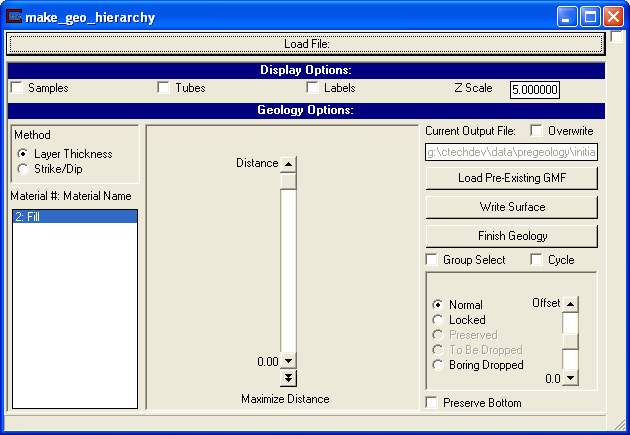
The Layer Thickness option is shown in the image above. This method generates layers based on the thickness of the chosen material. The benefit of this method is that it can quickly make simple geology models. The drawback to this method is that complex models can take a large amount of time.
The Distance slider reflects the position of the surface being created. The algorithm will look at the material of each boring at the current position. It will then see how far down each boring it can go until it finds the bottom of the boring or a different material. The double down arrow button below the slider will set the slider position to its maximum.
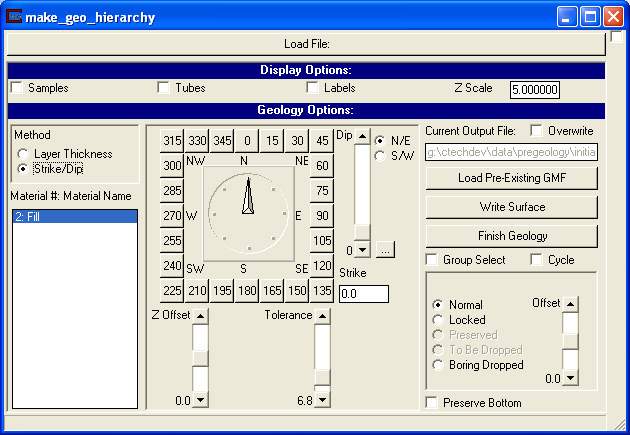
The Strike/Dip option is shown in the image above. This method generates layers based on their distance to a generated strike and dip plane. This method is useful for generating complex hierarchy models.
The Z Offset slider is used for visualization purposes only. It allows the user to change the position of the plane so that the strike and dip are easier to match if they are not known.
The Tolerance slider indicates the distance from the strike/dip plane that the bottom of current material can be. If the material continues below the plane past the tolerance value. The material will be split at that location.
The Current OutputFile text field contains the GMF filename that is being created. By default this name is created based upon the PGF filename selected. However a pre-existing GMF file can be read in using the Load Pre-Existing GMF File button. NOTE: Only GMF files that were created using this module, or those that have been altered to fit the format of this module's GMF output files should be loaded in this way.
The Overwrite toggle causes the GMF file in the Current Output File text field to be overwritten when the Write Layer button is selected. This toggle is on be default but automatically turned off when a GMF file is loaded using the Load Pre-Existing GMF button, or after the Write Layer button is selected.
The WriteSurface button will write the position of every boring in the TIN surface and the current selected material to the GMF file. If the Overwrite toggle is on it will overwrite the current file, else it will append the surface to the GMF file. It will also look at the position of the surface at each boring, if the surface is at the bottom of a material and there is another material below it, it will add the material below to the current selected material list. If the surface is at the bottom of the boring it will remove that boring from the TIN surface. NOTE: If a boring is at the bottom of a surface but other borings continue, a commented flag will be placed in the GMF file. This commented flag will not affect the output of the GMF file but will be taken into account when creating a GEO file with the Finish Geology button, where these flagged values are turned into SHORT flags. Finally if there are any locked borings (discussed below) then they will be unlocked.
The Undo Surface button will remove the last surface from the file. NOTE: This button affects file contents not just the memory resident surface.
The Finish Geology button should be used when the GMF file is complete. This will convert the GMF to a GEO file.

The Group Select toggle will bring up the window shown above. This window gives a Top View of the pgf file samples and is useful for selecting groups of borings to lock or unlock. Use the Alt + Right Mouse button to draw a polygon enclosing a group of spheres and then set their state to either Locked or Normal. The state of an individual boring can toggled using the Alt + Left Mouse button. A white sphere means the boring is in the Normal state and a grey sphere means it has been Locked. This view can also be translated by clicking and dragging inside the window.
The Cycle toggle will cause the module to automatically generate layers using the set parameters until it reaches a stopping condition. The stopping conditions include that it has reached the bottom of the model or that the next layer it creates would be of the same material as the one above it. The latter case can occur when using the strike/dip plane method with a tolerance that is to small. For the layer thickness method the algorithm will set the distance to the maximum extent and then write out that layer. It will then pick a material from the available materials at that location and continue.
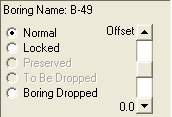
The window above appears when any sample along a boring is selected. By locking a boring, the user is keeping the surface from descending along that boring. The locked status of all boring will be cleared when the Write Layer button has been selected. All borings have a white where mesh sphere on them to indicate where they are a part of the TIN surface being created. When the boring is locked the mesh sphere will turn grey as shown in the picture below
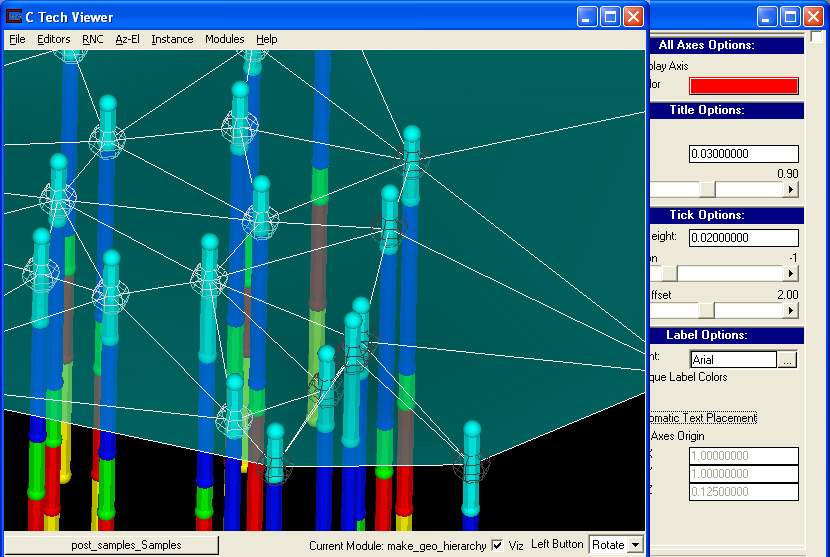
The boring can also be dropped from the TIN entirely, or have its current position changed.
© 1994-2018 ctech.com