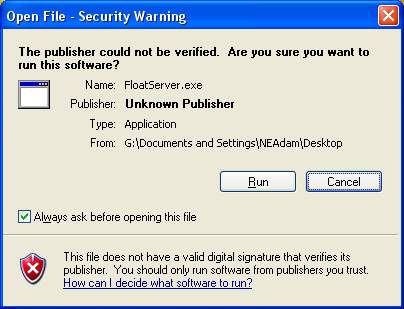
C Tech Premier Floating License Software is provided to the C Tech contact for your company, and is automatically installed using the install program setup.exe (which will autorun if your system is set up to do so). The Premier Floating License Server is compatible only with Windows Vistas, XP, Server 2003 or newer.
MVS Premier (the client software) is compatible only with Windows 7 or higher.
NOTE: When performing key update operations and using the Key_tools.exe program shown below, you must be logged into the console (physically at the server machine). Remote Desktop and Terminal Services will not run properly nor detect the hardware key.
The floating license server software is provided in two different versions (forms). For Windows XP, Server 2003 or newer Operating Systems there is a "service" that will auto-install. The service has the advantage that is starts automatically on boot, does not require any user to log in, and uses very little system resources. This is ideal when the server software is to be installed on a company's computer server.
To install the service:
First run your company's Premier Server installation.
Do not attach your hardware key to the USB port until the installation completes
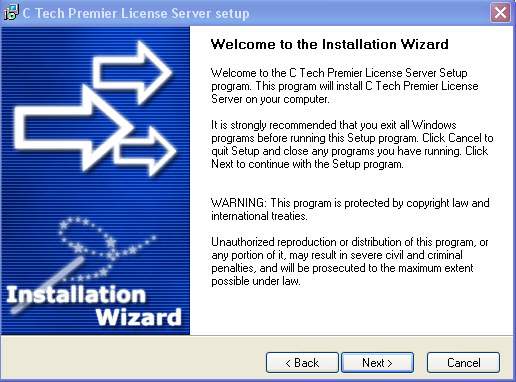
The installation welcome screen will appear next, the text "My Company Name" will be replaced with the name of your company, please read the disclaimers and then select Next to continue with the installation.
Please read through the license agreement on the following screen and if you accept of the terms as they are listed select the checkbox labeled "Yes I agree with all the terms of this license agreement." Select Next to continue.

On the "Setup Type" screen select the Floating License Server for Windows Vistas, XP, Server 2003 or newer, once again select Next to continue.
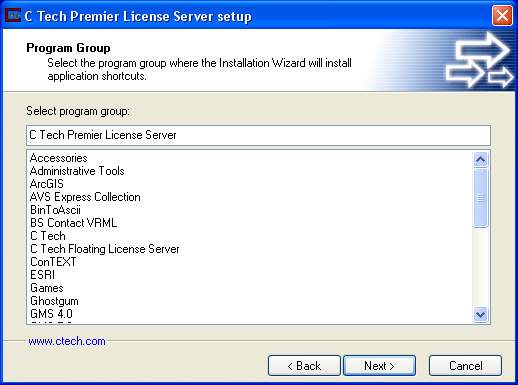
Next select the destination folder for Floating License Server to be installed to, and then select Next to continue.
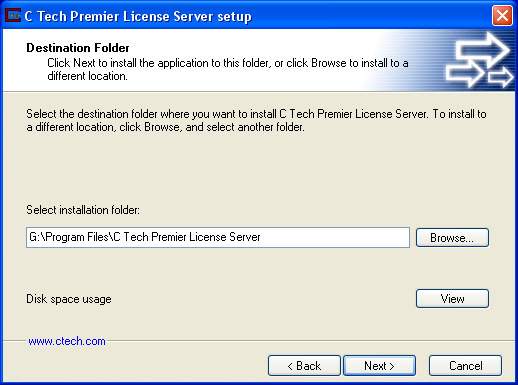
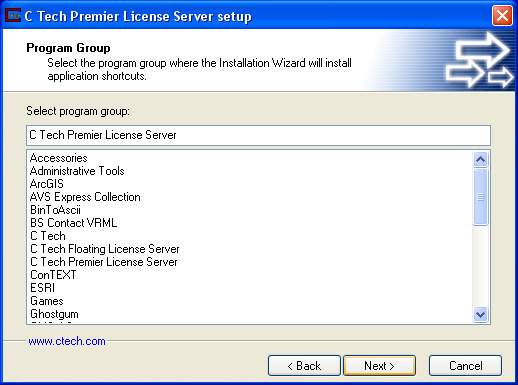
Select the program group you wish to use for the Server. Click Next to continue.
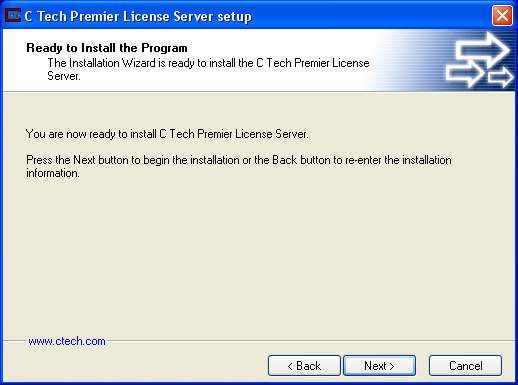
Congratulations you are ready to install the server software! Click Next to continue.
Click finish to exit the installation program.
NOW YOU MUST INSTALL THE CLIENT SOFTWARE
© 1994-2018 ctech.com